To create an application in Elipse Water, users must first create a Domain, which is responsible for gathering all projects of an application.
1.Start Elipse Water Studio and select the Create a new Domain option to open the Application Wizard.
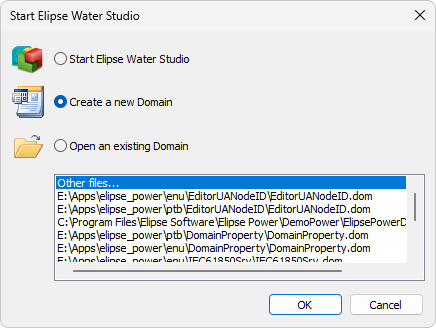
Option to create a new Domain
2.On the initial window of the Application Wizard, click Next.
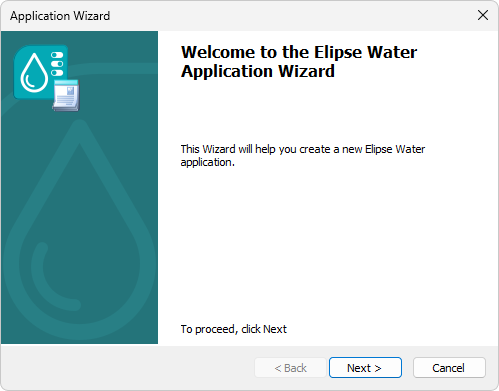
Application Wizard's initial window
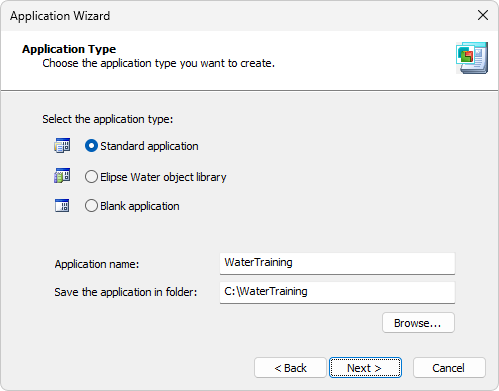
Option to define the type of an application
3.Select the Standard application option. After indicating a directory where this application must be saved and name it according to the previous figure, click Next to show the window on the next figure.
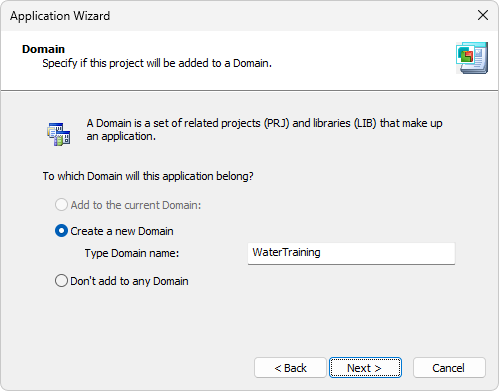
Option to define a Domain
4.Click Next again to show the window on the next figure.
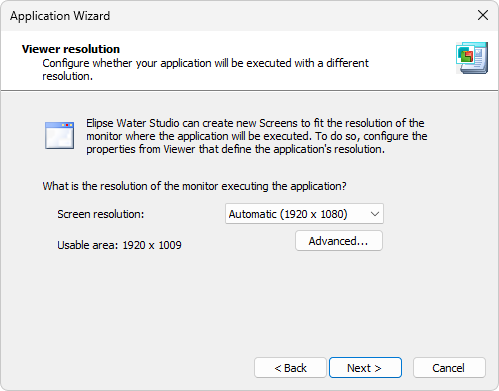
Option to configure Elipse Water Viewer's resolution
NOTE |
The Automatic option shows the current resolution configured on the computer, therefore its value varies from computer to computer. |
5.Answer No to the question Do you want to install an I/O driver?. This subject is presented on a later chapter. Click Next.
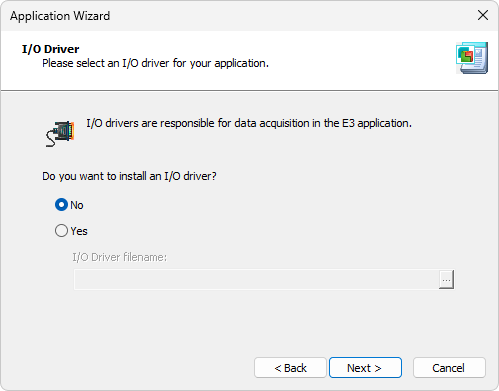
Option to configure an I/O Driver
6.Answer No to the question Do you want to store data in a database?. This subject is presented on a later chapter. Click Next.
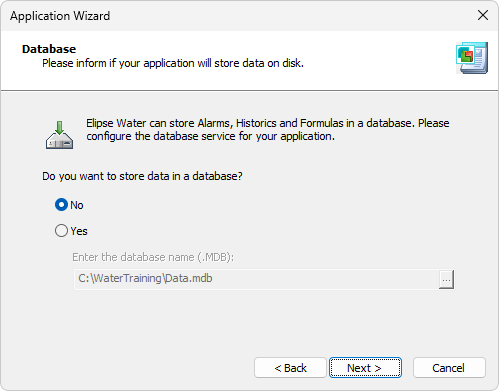
Option to configure a database
7.Answer No to the question Do you want an Alarm Server in your application?. This subject is presented on a later chapter. Click Next.
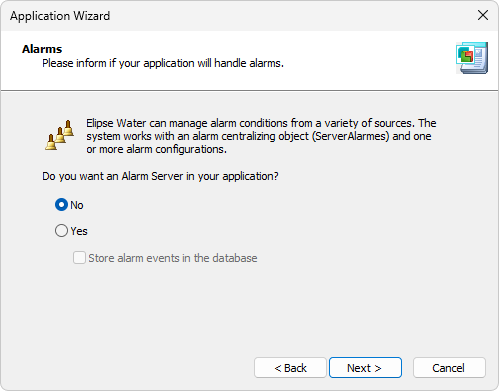
Option to configure alarms
8.Click Finish to generate this application.
9.At the end of these procedures, users have access to Elipse Water Studio's working area.
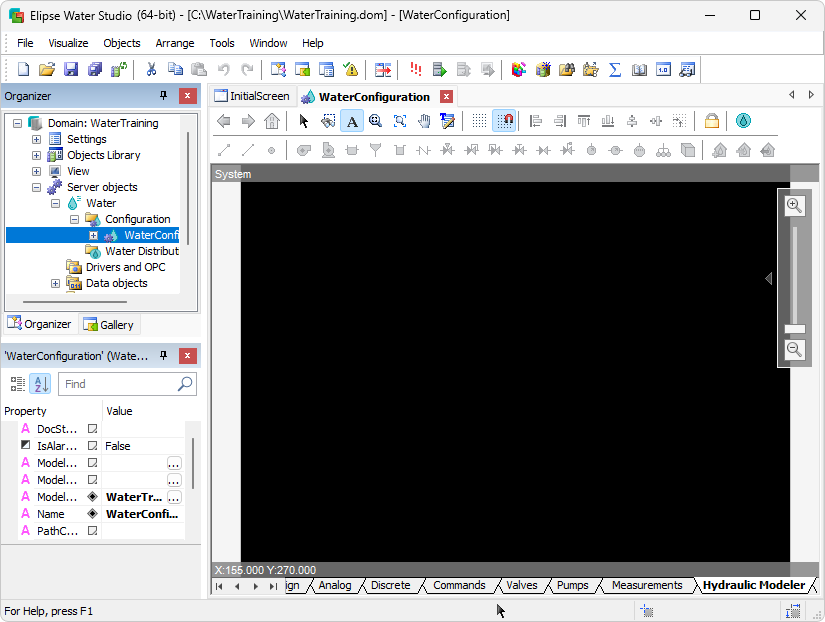
Application in Elipse Water Studio