The first step is to build the structure where Screens are presented to an operator. To create this structure, execute the next steps.
1.Right-click the View - Viewer and Frames item in Organizer and select the Insert Frame in - WaterTraining.prj option to create "Frame1".
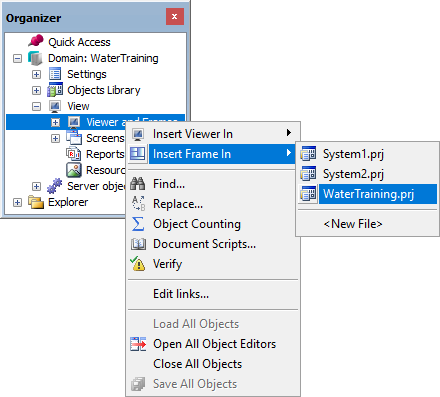
Insert Frame In option
2.Right-click the viewing area of this Frame and select the Split Horizontally option, according to the next figure.
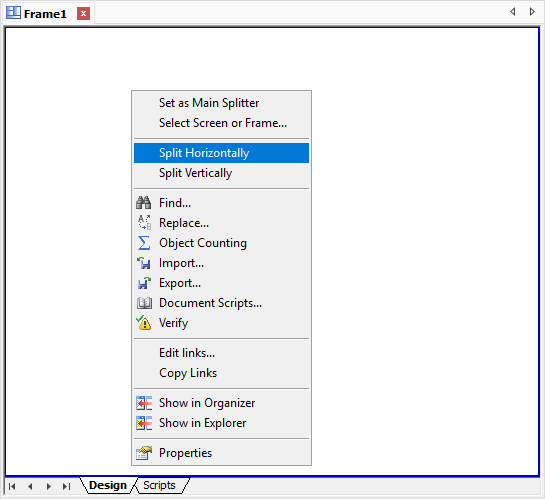
Split Horizontally option
3.Place the bar that appears approximately 15% of the Screen, from the top limit, and then left-click to fix this bar's position.
4.Configure the Splitter size to "15%" in the SplitValue property and change the SplitBorder property to False, according to the next figure.
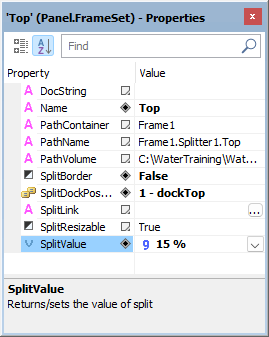
Upper Splitter properties
5.To test the configuration of this Frame, configure it to appear when the application starts. To do so, right-click the View - Viewer and Frames - Viewer item in Organizer and select the Properties option.
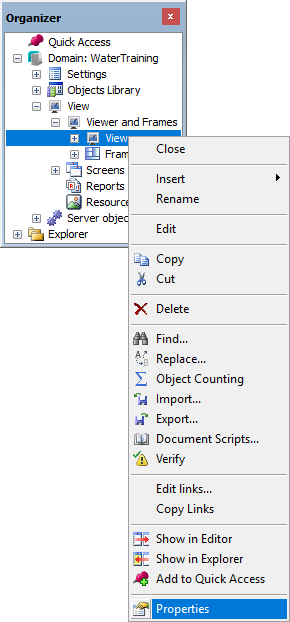
Viewer's Properties option
6.Select the Frame1 in the Initial Screen or Frame option on the E3 Viewer tab of the Properties Window.
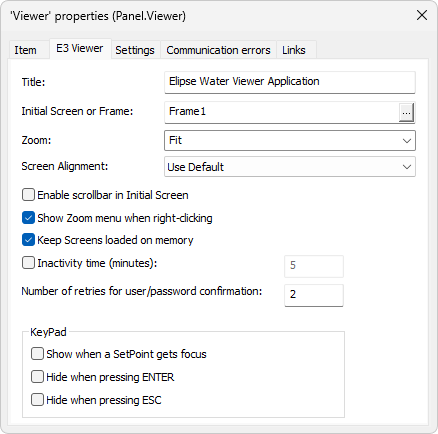
Initial Screen or Frame option