ActiveX objects are COM-based (Component Object Model) software components that can be inserted into an application to perform several tasks. These objects are developed in programming languages such as C/C++, Delphi, and Visual Basic, among others.
Some ActiveX objects are automatically registered when Elipse Water is installed: E3Alarm, E3Browser, and E3Chart (developed by Elipse Software); Microsoft Forms (developed by Microsoft); and Report (ActiveReports, developed by Data Dynamics). E3Alarm, E3Browser, E3Chart, and Report objects have specific chapters further in this Manual. Microsoft Forms objects are described in another topic on this chapter.
NOTE |
For ActiveX objects not previously installed by Elipse Water, these objects must be installed in all computers where an application is executed, especially on Remote Elipse Water Viewers. |
In addition to these ones, users can insert any ActiveX object. To register an ActiveX in Elipse Water, follow these procedures:
1.Open the Tools - Manage Active X menu. The following dialog box is then displayed.
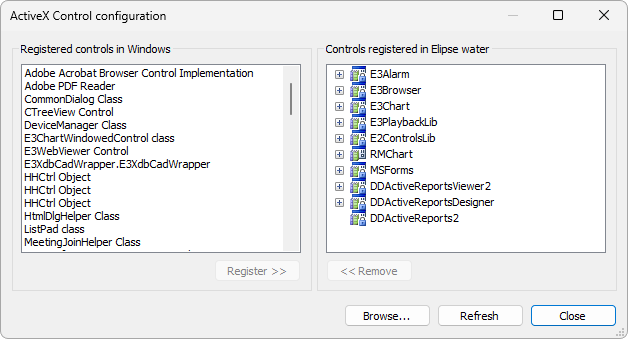
ActiveX Control configuration window
Available options for ActiveX Control configuration window
Option |
Description |
|---|---|
Registered controls in Windows |
List with all ActiveX controls registered in Windows and that can be added to Elipse Water |
Registered controls in Elipse Water |
List with all ActiveX controls already registered in Elipse Water |
Register |
Registers the selected control in Elipse Water. If this control is not compatible with Elipse Water, a dialog box is then displayed warning users about this incompatibility |
Remove |
Removes the selected control from the Registered controls in Elipse Water list, moving it back to the Registered controls in Windows list. Controls with an |
Browse |
Opens a dialog box to search for an ActiveX file |
Refresh |
Allows updating ActiveX controls on the Registered controls in Windows list, which were registered after opening this configuration window |
Close |
Closes the ActiveX Control configuration window |


2.Click Browse to open a dialog box and locate a file that contains an ActiveX.
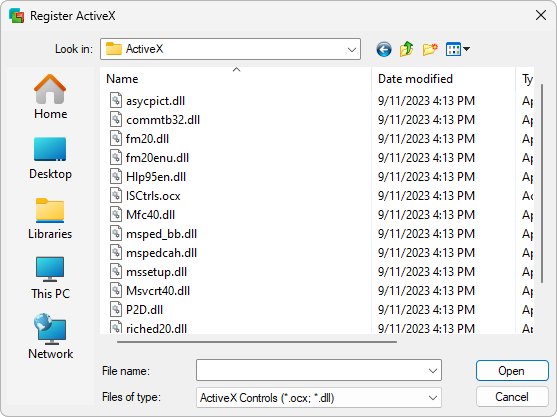
Locating an ActiveX file
3.Select the file and then click Open.
ActiveX objects can be of type Graphical, used in application Screens, and Non-Graphical, which perform any data manipulation.
Graphical objects can be inserted on an application in the following ways:
•By selecting the appropriate object on the toolbar of a Screen
•By right-clicking a Screen object in Organizer and then selecting the Insert option
•By right-clicking a Screen and selecting the Insert option
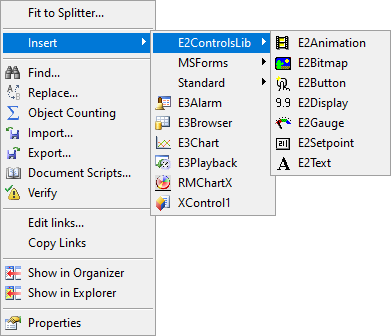
Inserting a graphical object on a Screen
Non-graphical objects can be used on applications via scripts, and they are created with VBScript's CreateObject standard method.