To customize Elipse Power Studio's appearance, click the View - Customize menu. The available options on this item are described next.
Commands Tab
This tab defines additional icons for the Default toolbar or for the menu bar. To do so, click an icon on the Commands list and drag it to the Default toolbar or to the menu bar.
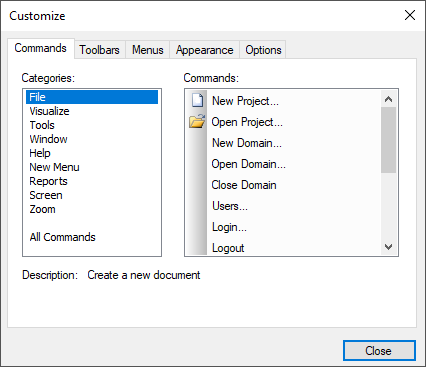
Commands tab
The available options on this tab are described on the next table.
Available options for the Commands tab
Option |
Description |
|---|---|
Categories |
Shows the available categories for the Default toolbar or the menu bar in Elipse Power Studio |
Commands |
Shows the items composing the selected category |
Description |
A short description of the selected option |
Toolbars Tab
This tab configures the Default toolbar and the menu bar in Elipse Power Studio.

Toolbars tab
The available options on this tab are described on the next table.
Available options for the Toolbars tab
Option |
Description |
|---|---|
Toolbars |
Lists all available toolbars |
Reset |
Restores the default options for the selected item on the Toolbars list |
Reset all |
Restores the default options for the Default toolbar, as well as for the menu bar |
New |
Creates a new toolbar. This option has no effect and it is kept in Elipse Power for compatibility reasons |
Rename |
Changes the name of the selected toolbar. This option has no effect and it is kept in Elipse Power for compatibility reasons |
Remove |
Removes the selected toolbar. This option has no effect and it is kept in Elipse Power for compatibility reasons |
Show legends |
Shows a legend on the options of the Default toolbar. This option is not available for the menu bar |
Menus Tab
This tab configures Elipse Power menus.

Menus tab
The available options on this tab are described on the next table.
Available options for the Menus tab
Option |
Description |
|---|---|
Show menus for |
Displays an application's pre-defined menu. This option has no effect and it is kept in Elipse Power for compatibility reasons |
Reset |
Resets a menu defined in the previous option. This option has no effect and it is kept in Elipse Power for compatibility reasons |
Menu Animation |
Selects the type of animation used on menus. Available options are None (Elipse Power default), Unfold, Slide, Fade, or [Default] (Windows default) |
Shaded menus |
Defines whether a menu displays a shaded effect or not |
Appearance Tab
This tab changes the appearance of windows and toolbars in Elipse Power Studio.
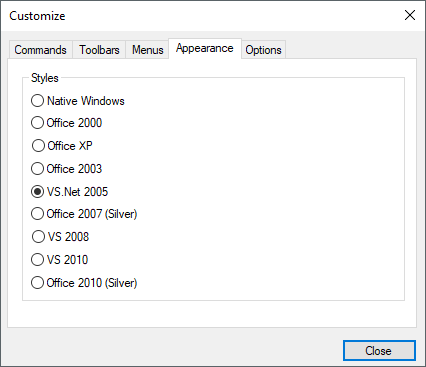
Appearance tab
The available options on this tab are described on the next table.
Available options for the Appearance tab
Option |
Description |
|---|---|
Native Windows |
Configures Elipse Power Studio's appearance with the style used on the currently installed Windows color scheme |
Office 2000 |
Configures Elipse Power Studio's appearance with the style used on Office 2000 color scheme |
Office XP |
Configures Elipse Power Studio's appearance with the style used on Office XP color scheme |
Office 2003 |
Configures Elipse Power Studio's appearance with the style used on Office 2003 color scheme |
VS.Net 2005 |
Configures Elipse Power Studio's appearance with the style used on Visual Studio .NET 2005 color scheme |
Office 2007 (Silver) |
Configures Elipse Power Studio's appearance with the style used on Office 2007 Silver color scheme |
VS 2008 |
Configures Elipse Power Studio's appearance with the style used on Visual Studio 2008 color scheme |
VS 2010 |
Configures Elipse Power Studio's appearance with the style used on Visual Studio 2010 color scheme |
Office 2010 (Silver) |
Configures Elipse Power Studio's appearance with the style used on Office 2010 Silver color scheme |
Options Tab
This tab configures general specifications of a project. In this item, users can enable or disable options for the Default toolbar or for a Screen's toolbar.
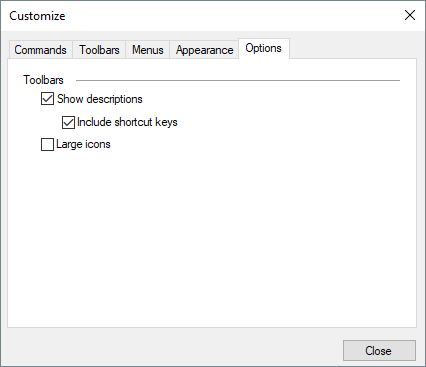
Options tab
The available options on this tab are described on the next table.
Available options for the Options tab
Option |
Description |
|---|---|
Show descriptions |
Enables Elipse Power to show a brief description on the options of the Default toolbar and on the options of a Screen's toolbar whenever the mouse pointer is over an item |
Include shortcut keys |
Shows or hides shortcut keys on the description of an option |
Large icons |
Enables large icons on the Default toolbar and on a Screen's toolbar |