This Driver does not use [P] parameters. Users can configure any physical layer for usage with this Driver, such as Serial or Ethernet, but at run time this Driver always switches the physical layer to None.
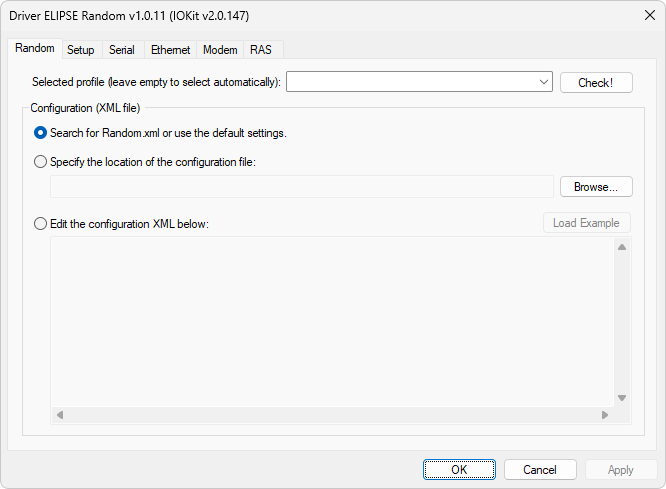
Random tab
Selecting the Active Profile
The configuration of this Driver can contain several Profiles. Select on the Selected profile option the name of the active Profile, or leave this option blank so that this Driver automatically selects a Profile, according to the name of this Driver's library, that is, the name of the file with a .dll extension. Click Check to load and validate the current configuration of this Driver.
Automatic Search for the Random.xml File
The default mode of this Driver is to search for the Random.xml file on the current folder or on parent folders. To keep this default behavior, select the Search for Random.xml or use the default settings option.
In this mode, the Driver searches for the Random.xml file on the same folder that contains the .dll file of this Driver. If this file is not found on this folder, the search continues on the parent folders up to the root folder. For example, if the Random.dll file is on folder D:\Scada\Elipse\App1, this Driver searches for the next files, in that order:
•D:\Scada\Elipse\App1\Random.xml
•D:\Scada\Elipse\Random.xml
•D:\Scada\Random.xml
•D:\Random.xml
If that file in XML format is not found, this Driver then assumes the default configuration compatible with the original Elipse Random Driver.
Specifying a Different Name or Path for the XML File
To specify an alternate name or path for the configuration file in XML format, please select the Specify the location of the configuration file option.
If an absolute path is informed, such as C:\Scada\MyConfig.xml, then this Driver searches for this file only on the specified folder.
If a relative path is informed, such as MyConfig.xml or Drivers\MyConfig.xml, then this Driver searches for this file in XML format on the folder with the .dll extension or on parent folders if it is not found.
Informing an XML File Directly on the Properties Window
To edit the content of a configuration file in XML format directly on the properties window of this Driver, please select the Edit the configuration XML below option, shown on the next figure.
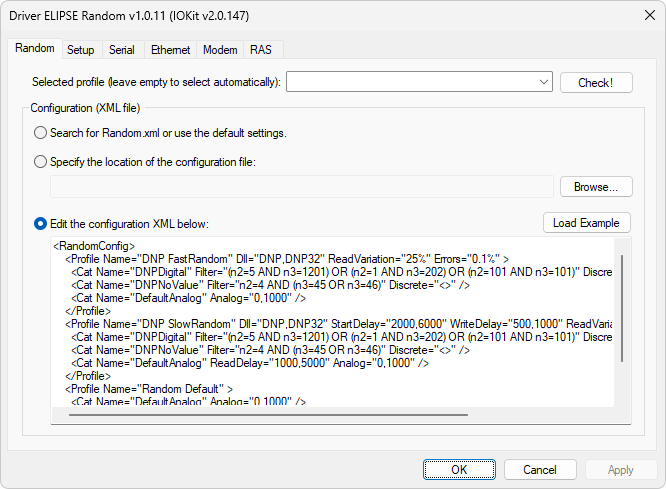
Edit the configuration XML below option
In this mode, the configuration of this Driver is saved with the application, and no external file is used at run time.
The Load Example option loads an example configuration, according to the previous figure.