Elipse E3 starting with version 2.0, Elipse Power, and Elipse Water contain a tool called Tag Browser, which allows this Driver to help users creating and configuring Tags.
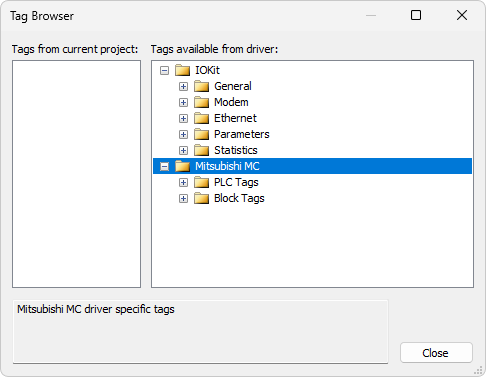
Tag Browser window
The Tags from current project list displays Tags and folders already in the current project. The Tags available from driver list displays a tree with Tags available in this Driver. To create a Tag in an application, drag one of the Tags defined by this Driver to a folder on the current directory. The Mitsubishi MC Driver contains the following nodes on this tree view:
•The IOKit node displays the Tags available in the IOKit library, grouped into the following categories:
•General: Tags for general use
•Modem: Tags for manipulating communication via modem
•Ethernet: Tags for manipulating communication via Ethernet network
•Parameters: Tags for configuring IOKit library parameters
•The Mitsubishi MC node contains folders classifying the type of Tags they contain, PLC Tags or Block Tags. On each one of these folders there are other folders separating Tags by Area, and these ones finally contain end nodes, which are examples of Tags for every area. There is an example for each type. Drag one of these Tags to the list on the left, or even a node from an entire folder to move all of them at the same time, and this Tag or Tags are already configured to work
This Tag Browser for Mitsubishi MC Driver aims to automate the configuration of its Tags through examples for each area and for each supported type. Evidently, in most cases it is useful to add through it only Tags from areas and types that are interesting to a project, with manual settings performed later. Tag Browser suggests the value "00000" (zero) as an area's Address, in the Item field, which might be probably reconfigured after including those Tags. If a Block Tag is selected, it is already shown with a suggested size of 10 Elements, which can also be modified later.