To configure a NIC (Network Interface Card) correctly and change its MAC (Media Access Control) address, follow the next procedures.
1.Go to Network and Sharing Center panel and select the network connection.
2.On the Ethernet Status window, click Properties.
3.On the Ethernet Properties window, deselect all items on the This connection uses the following items option. This prevents unnecessary traffic from Windows or TCP/IP protocols reaching the ABB network, thus causing delays in the information process.
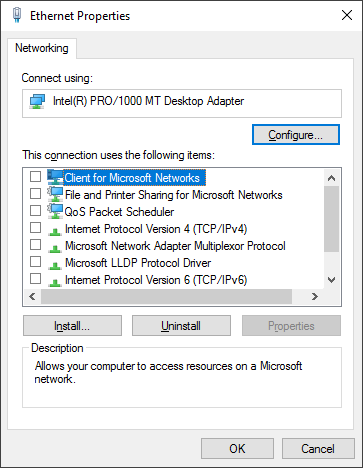
Networking tab
4.Click Configure and select the Advanced tab.
5.Select the Link Speed & Duplex item on the Property list (Media Type on Windows XP) and then the 10 Mbps Half Duplex item on the Value list (10 Mb, Half Duplex on Windows XP).
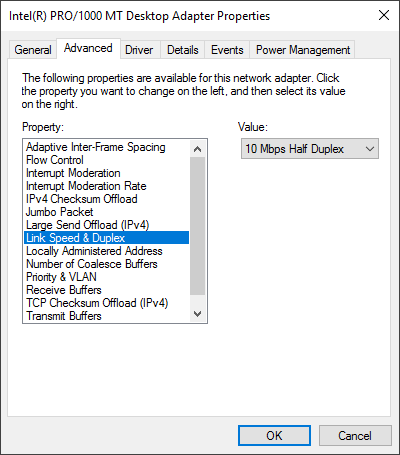
Advanced tab
6.A MAC address of a NIC must be in the format 00:00:23:00:XX:00, in which XX is this Driver's network address on the ABB network, and it must be different from all other network nodes. For example, if users want this Driver's node to be 31, in decimal notation, its MAC address must be equal to "00:00:23:00:1F:00", in which 1F is equal to 31 in hexadecimal notation.
NOTES |
•If a MAC address is not in the 00:00:23:00:XX:00 format or if XX does not match any local node address, then this Driver does not start. •Some NICs may not allow changing their MAC addresses. In this case, users must install a NIC that allows this option to connect to an ABB Masterbus network. |
To change a MAC address, the next methods are available.
Changing a MAC Address on the Adapter properties
1.On the properties window of an Adapter, click Configure and then select the Advanced tab.
2.On the Property list, select an item called Network Address or Locally Administered Address.
3.On the Value list, type the new MAC address to assign to this Adapter. Usually this value is typed without a colon (:).
4.Save these configurations and close all windows.
Changing a MAC Address on Windows Registry
Try this method if the previous one does not work.
1.Open Control Panel and double-click the Network and Sharing Center item (Network and Dial-up Connections on Windows XP).
2.Right-click an Adapter and click Properties.
3.On the General tab, click Configure. This window displays the description of the Adapter to change, as shown on the next figure.
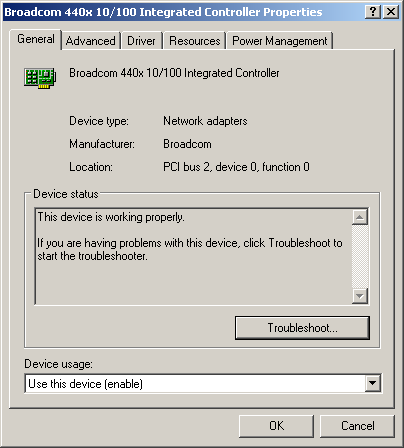
General tab of an Adapter
4.Go to Start menu, click Run, and type "regedit" to start Windows Registry Editor.
5.Go to the HKEY_LOCAL_MACHINE\SYSTEM\CurrentControlSet\Control\Class\{4D36E972-E325-11CE-BFC1-08002BE10318} key. Double-click it to expand its tree. All its sub-keys are named with 4-digit numbers, which represent specific network adapters. Search these sub-keys to find the one with a DriverDesc entry that matches the description of the Adapter to change.
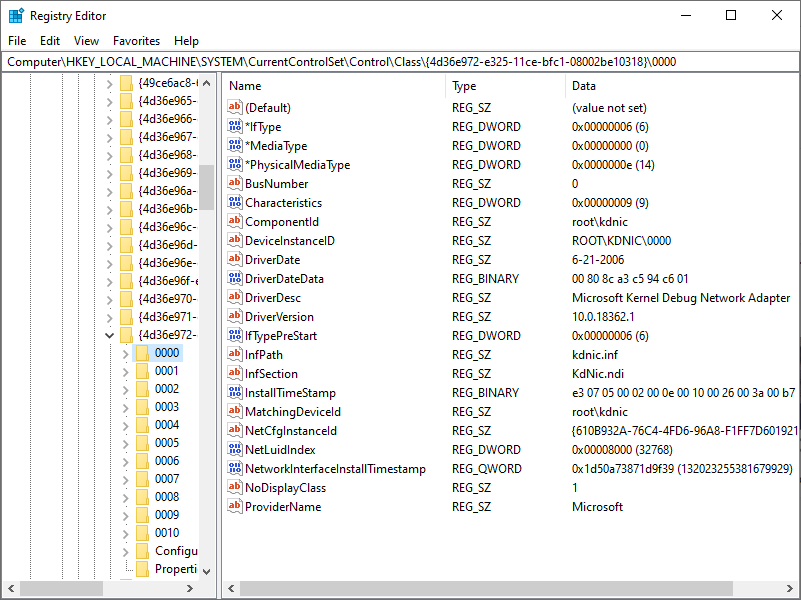
Windows Registry Editor
6.Select the sub-key, such as 0000, and check if it contains an entry named NetworkAddress.
7.If this NetworkAddress entry does not exist, select the Edit - New - String Value menu and name it as "NetworkAddress".
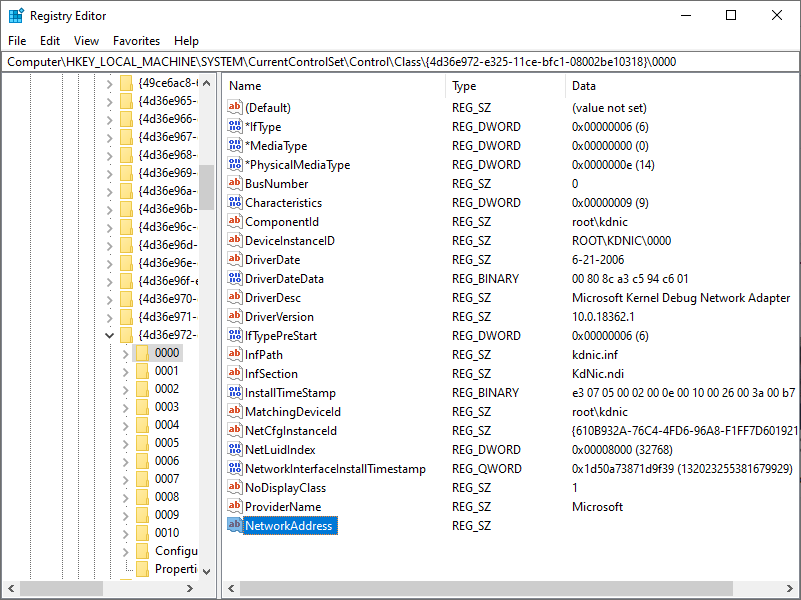
Creating a new entry in Registry
8.Double click the NetworkAddress entry, type the new MAC address to use, and click OK. This is a 12-character value and it must not contain dashes, only numbers and characters from A to F, that is, in hexadecimal format.
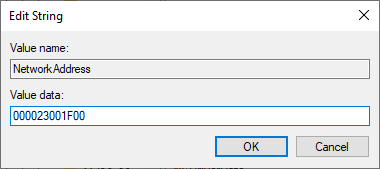
Editing the value of an entry
9.If the NetworkAddress entry already exists, check if its type is equal to REG_SZ. Double-click it to type the MAC address as in the previous step and click OK.
The ways to activate this new MAC address are either by restarting the computer or by following these steps:
1.Open Control Panel and double click the Network and Dial-up Connections item.
2.Select the network Adapter whose MAC address was changed.
3.Right-click it and select the Disable option. Notice that the Status column of this Adapter changes to Disabled.
4.Right-click it again and select the Enable option. Notice that the Status column of this Adapter changes to Enabled.
5.If an Adapter cannot be disabled and then enabled for any reason, please restart the computer to apply these changes.