Together with this Driver, starting with version 3.0.42, the following programs are provided:
•ElipsePRPSvc.exe: A service that implements the PRP protocol
•ElipsePRPTray.exe: A program that allows configuring and monitoring ElipsePRPSvc service
These programs must be copied to a user-defined folder to allow using them on a PRP network. These programs can be located on the same folder of this Driver or on a different location. Users must also copy to that same folder the file et32b.dll, which is found on Bin or Bin32 folder of Elipse Power installation.
For this service to work correctly, users must install it on the computer and there also must exist on the same directory an initialization file called ElipsePRPSvc.ini. Both configurations are performed using the ElipsePRPTray program.
ElipsePRPTray
The ElipsePRPTray program must be executed as administrator to install and configure the service. To do so, right-click the executable file and select the Run as administrator option. When opened, this programs displays, on Windows Notification Area, an icon  indicating that the service is not installed, an icon
  indicating that the service is installed but stopped, or an icon
  indicating that the service is executing. The available options on the contextual menu of ElipsePRPTray program are described on the next table.
Options for the contextual menu of ElipsePRPTray
Option |
Description |
|---|---|
About Elipse PRP Tray |
Opens a dialog box with information about this program |
Configuration |
Allows installing and configuring the service on the PRP Configuration window, shown on the next figure |
Run/Stop |
With the service installed, this option allows stopping or executing the service |
Exit |
Closes the program without affecting the status of the service |
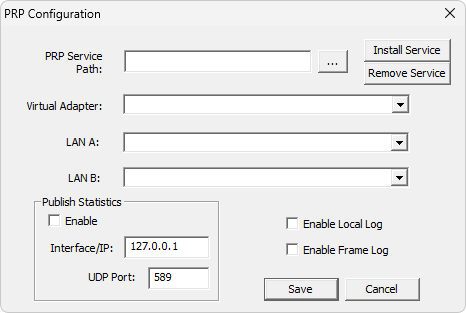
PRP Configuration window
The available options on this window are described on the next table.
Available options on the PRP Configuration window
Option |
Description |
|---|---|
PRP Service Path |
Indicas the full path of the file ElipsePRPSvc.exe |
Virtual Adapter |
Defines a virtual network adapter |
LAN A |
Defines the first physical network adapter |
LAN B |
Defines the second physical network adapter |
Install Service |
Installs the Elipse HSR/PRP Service |
Remove Service |
Removes the Elipse HSR/PRP Service |
Publish Statistics - Enable |
Defines whether the Elipse HSR/PRP Service publishes statistics of packets for this Driver |
Publish Statistics - Interface/IP |
Defines the IP address for publishing statistics of packets for this Driver |
Publish Statistics - UDP Port |
Defines the UDP/IP port for publishing statistics of packets for this Driver |
Enable Local Log |
Enables the generation of basic logs of the Elipse HSR/PRP Service |
Enable Frame Log |
Enables the generation of logs of packets |
Save |
Generates a file ElipsePRPSvc.ini on the installation directory of the Elipse HSR/PRP Service |
The Elipse HSR/PRP Service is installed by default with the option to start as automatic. To change this configuration, open the Services program on the Start menu, double-click this service, and select the Automatic item of the Startup option on the General tab.
Production Environment
For an installation in a production environment, it is recommended that this service be configured with the option to start automatically and be automatically restarted in case of failure. Starting with version 1.0.0.2, if any network adapter cannot be accessed for more than 1 (one) minute, this service forces quitting with an error code 57 (Adapter Hardware Error). To configure this service to restart automatically, select the Discovery tab e realize as seguintes alterações:
•Select the Restart the Service item in the First Failure option
•Select the Restart the Service item in the First Failure option
•Select the Restart the Service item in the Subsequent Failure option
•Select the Enable actions for stops with errors option
•Define a time-out to restart this service in the Restar service after option
Also, disable the Enable Local Log and Enable Frame Log options on the PRP Configuration window to avoid generating a huge amount of logs.
NOTES |
•The operation of this service is completely independent from this Driver and from any other IOKit application executing or not. •To use ElipsePRPTray whenever Windows starts, add a shortcut to this program on Windows Start menu. To do so, right-click this program's icon and select the Pin to Start option. •In case of changing this service from folder after executing once, remove this service from Windows manually. To do so, select this service in the Services program and select the Stop option. To remove, open a Windows Command Prompt as an administrator and execute the command sc delete "ElipsePRP". |